
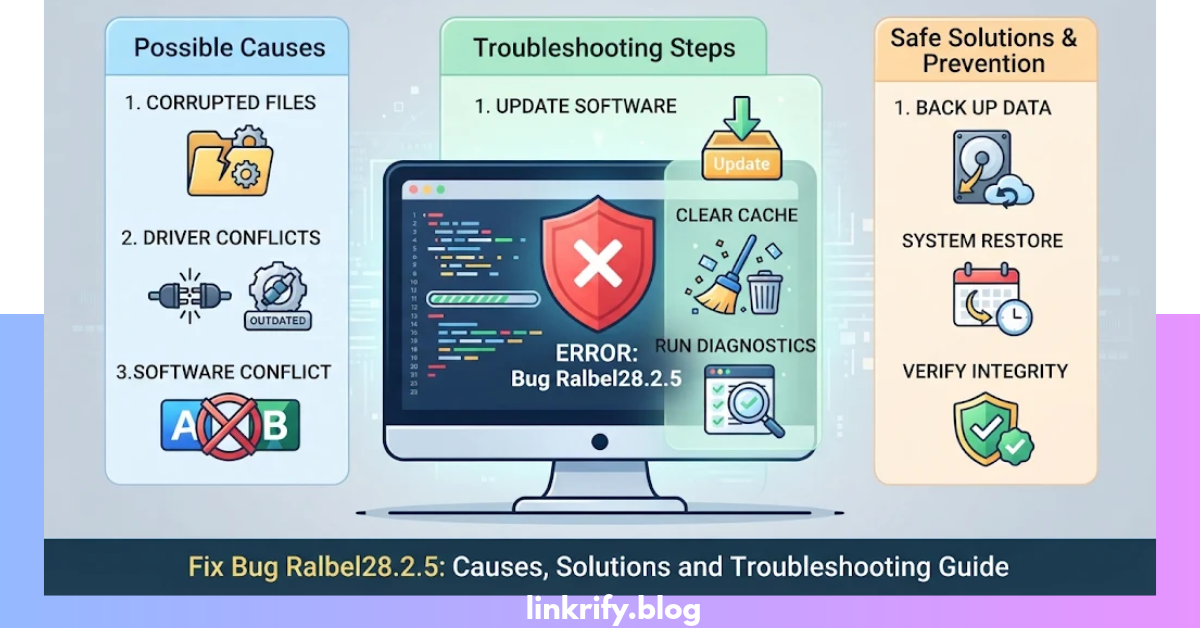
Fix Bug Ralbel28.2.5: Causes, Solutions and Troubleshooting Guide
Unexpected software errors can interrupt important tasks, slow down applications, and make even simple computer operations frustrating. People searching for Fix Bug Ralbel28.2.5 may be looking for answers about crashes, installation failures, compatibility problems, or unusual error messages. However, the exact identity of Ralbel28.2.5 remains unverified in publicly available official documentation. This guide explains how to investigate the issue, apply safe troubleshooting methods, and avoid unreliable fixes.
What Is Bug Ralbel28.2.5?
Bug Ralbel28.2.5 is an online search term associated with possible software-related problems. Several third-party websites describe it as an error involving application crashes, failed installations, performance issues, and compatibility conflicts.
However, these descriptions do not establish a verified software product, official developer, or confirmed technical defect.
The number 28.2.5 resembles a conventional software version format. It could represent a release number, internal build, package identifier, or another technical reference.
Without reliable documentation, users should avoid assuming that every problem associated with this keyword has the same cause.
What Does the Ralbel28.2.5 Name Represent?
The identifier contains two apparent elements:
- Ralbel: A possible software, package, application, or component name.
- 28.2.5: A number that resembles a three-part software version.
Developers frequently use numbered releases to organize software updates and maintenance changes. However, the format alone cannot confirm the identity or functionality of a particular program.
Why Does the Ralbel28.2.5 Software Issue Occur?
There is no confirmed universal cause behind this reported issue. Nevertheless, several common software problems can produce similar symptoms.
Understanding these possibilities helps users investigate the actual application rather than applying random solutions.
1. Corrupted Application Files
Application files can become damaged when an installation stops unexpectedly, a computer shuts down during an update, or storage problems interrupt normal operations.
Damaged files may prevent an application from opening correctly. They can also cause unexpected crashes or missing-component messages.
2. Incompatible Software Versions
An application may stop working properly after an operating system update or a change to another installed component.
For example, an older application might depend on libraries or system features that have changed in a newer environment.
Checking compatibility information can help identify this type of problem.
3. Missing Dependencies
Software applications often depend on additional components, frameworks, libraries, and runtime packages.
If one of these dependencies is missing, outdated, or incompatible, the application may fail to start or complete certain operations.
4. Incorrect Configuration Settings
Configuration files control how many applications behave.
An incorrect setting, damaged configuration file, or unexpected change may prevent software from loading its required resources.
5. Interrupted Software Updates
An interrupted update can leave an application with incomplete files or inconsistent settings.
This situation may cause installation errors, unexpected shutdowns, or problems when launching the updated program.
Common Symptoms Associated With Bug Ralbel28.2.5
Online troubleshooting discussions mention several possible symptoms. These should be treated as reported problems rather than confirmed characteristics of an official Ralbel product.
| Reported symptom | Possible explanation | Recommended investigation |
| Application crashes | Damaged files or compatibility problems | Check application logs |
| Installation failure | Incomplete installation or permissions | Review installation errors |
| Slow performance | Resource consumption or background processes | Monitor CPU and memory |
| Unexpected freezing | Application or system instability | Examine system events |
| Missing components | Dependency problems | Verify required packages |
| Plugin errors | Extension incompatibility | Check plugin versions |
| Update failure | Interrupted download or installation | Review update records |
| Startup problems | Configuration or loading errors | Inspect startup logs |
Identifying the exact symptom is an important first step before choosing a repair method.
How to Fix Bug Ralbel28.2.5: Step-by-Step Solutions
There is no independently verified Ralbel-specific repair procedure. However, the following troubleshooting methods can help investigate ordinary application problems safely.
1. Restart the Application and Computer
Start with a simple restart before making major changes.
Close the affected application completely. Wait a few seconds and open it again.
If the problem continues, restart your computer. This can clear temporary processes and release resources that may interfere with normal application operations.
Microsoft also recommends restarting a computer when troubleshooting certain installation and removal problems.
2. Check for Available Software Updates
Outdated software can develop compatibility problems when other system components change.
Visit the application’s verified developer website or its official update platform.
Check for:
- Available software updates.
- Published maintenance releases.
- Compatibility improvements.
- Known issue announcements.
- Security updates.
- Installation instructions.
Install updates only from a trustworthy source. An unofficial update claiming to repair Ralbel28.2.5 should not be considered genuine without verification.
3. Repair the Application Installation
If you use Windows 11, some installed applications provide built-in repair options.
Follow these steps:
- Open Windows Settings.
- Select Apps.
- Open Installed Apps.
- Find the affected application.
- Select its Advanced Options, if available.
- Choose Repair.
- Restart the application and check its behavior.
The Repair option attempts to resolve certain application problems without requiring a complete reinstallation.
Not every desktop application supports this feature. Microsoft documents these recovery options in its official application repair guidance.
4. Check Software Compatibility
Compatibility problems can appear after operating system updates or application changes.
Verify the following details:
- Your operating system version.
- The application’s supported versions.
- Required system components.
- Available memory and storage.
- Hardware and driver compatibility.
- Supported plugins and extensions.
For older Windows applications, the Program Compatibility Troubleshooter may help identify configuration problems.
Avoid installing older software versions unless the developer confirms that they remain supported.
5. Examine Application Error Logs
Error logs provide useful information about application failures.
Instead of guessing the cause, inspect the available diagnostic information.
On Windows, you can use Event Viewer:
- Press Win + R.
- Enter eventvwr.msc.
- Press Enter.
- Open Windows Logs.
- Select Application.
- Look for errors recorded around the time of the crash.
- Review the event description and affected application.
Record the error code, application name, timestamp, and any referenced file.
These details can help technical support identify the actual source of the problem.
6. Check Available Storage and System Resources
Insufficient storage or memory can affect application performance.
Open Task Manager and review CPU, memory, and disk usage.
Also check the available storage space on the drive containing the affected application.
If the computer is running multiple demanding programs, close unnecessary applications and test again.
Do not delete unfamiliar system files to create additional space.
7. Verify Required Dependencies
Some applications require specific frameworks, runtime packages, or supporting libraries.
Check the application’s official installation documentation for its requirements.
If a required component is missing, obtain it from the original developer or trusted software distributor.
Avoid downloading individual DLL files or replacement components from unknown websites. Incorrect files can create additional compatibility and security problems.
8. Reinstall the Affected Application
If repairing the application does not resolve the issue, reinstalling may help when its installation files are damaged.
Follow this process:
- Back up important application data.
- Save relevant configuration files.
- Uninstall the affected application using its normal removal process.
- Restart the computer.
- Download the installer from the verified developer.
- Install the application again.
- Test its basic features.
Reinstallation is not a guaranteed solution. It should follow less disruptive troubleshooting methods.
9. Review Recent System Changes
Think about what happened immediately before the problem appeared.
Did you install a new application, update a driver, change a configuration setting, or modify an existing plugin?
Recent changes can provide useful clues.
If the problem started immediately after a specific update, check the developer’s release notes and official recovery guidance before considering a rollback.
10. Contact the Software Developer
If the error continues, contact the application developer or your organization’s technical support team.
Provide the following information:
- Complete error message.
- Application name and version.
- Operating system version.
- Date and time of the failure.
- Steps that reproduce the problem.
- Relevant application logs.
- Recent software changes.
Clear diagnostic information makes technical investigation easier and reduces unnecessary troubleshooting.
Complete Troubleshooting Comparison Table
The following table summarizes useful diagnostic actions for different software problems.
| Problem | First action | Further solution | Risk level |
| Application crashes | Restart application | Review crash logs | Low |
| Installation fails | Check installer source | Repair or reinstall | Medium |
| Software freezes | Check system resources | Investigate event logs | Low |
| Compatibility error | Verify supported versions | Use compatibility tools | Low |
| Missing dependencies | Review requirements | Install verified components | Medium |
| Update failure | Check internet connection | Use official update recovery | Low |
| Plugin malfunction | Disable affected plugin temporarily | Install compatible version | Medium |
| Configuration error | Review recent changes | Restore backed-up settings | Medium |
| Repeated startup failure | Inspect diagnostic logs | Contact developer | Low |
Risk levels are general guidance, not a verified assessment of Ralbel28.2.5-specific fixes.
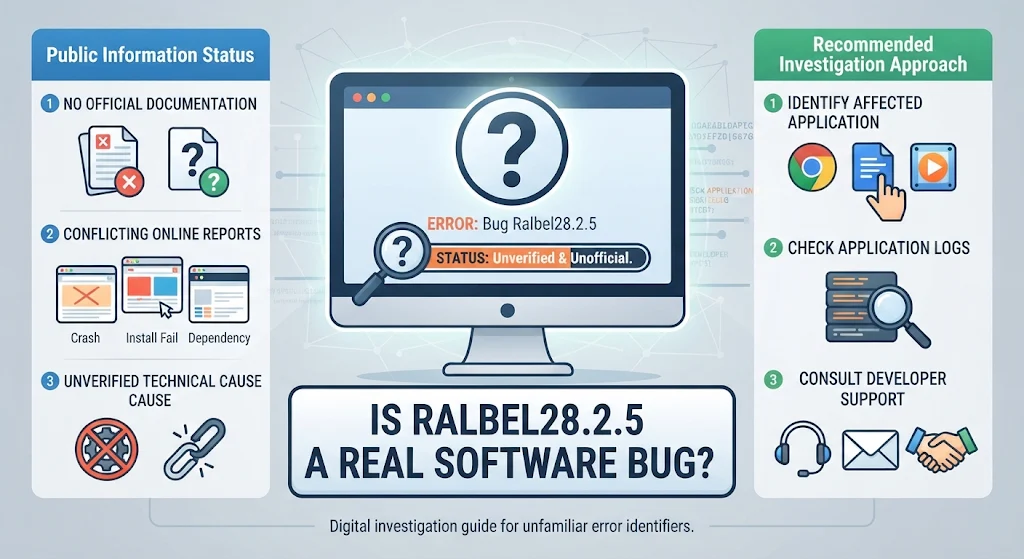
Is Ralbel28.2.5 a Real Software Bug?
This is an important question for anyone researching the keyword.
The available public information does not independently establish Ralbel28.2.5 as a recognized software release or an officially documented bug from an identifiable developer.
Several websites discuss the term, but their explanations differ. Some associate it with application crashes, while others mention installation problems, dependencies, and performance issues.
These claims do not establish a single verified technical cause.
A genuine software problem can still occur even when its error identifier is unfamiliar. The correct approach is to identify the application displaying the message and investigate its diagnostic information.
How to Prevent Similar Software Problems
Preventive maintenance can reduce many common software failures.
Follow these practical recommendations:
- Install trusted updates: Use official software distribution channels.
- Maintain sufficient storage: Avoid allowing your system drive to become completely full.
- Back up important files: Keep copies of application data and configuration settings.
- Check compatibility: Confirm that new applications support your operating system.
- Monitor system performance: Investigate unusual CPU and memory consumption.
- Review plugins: Remove or update extensions that are no longer supported.
- Keep security protection active: Do not disable antivirus protection to run an unfamiliar patch.
- Maintain installation records: Save version details and important update information.
These habits make software problems easier to investigate and reduce the risk of unnecessary system changes.
Security Risks of Downloading Unofficial Ralbel28.2.5 Fixes
Searching for a quick repair can lead users to websites offering unknown installers, executable files, or replacement system components.
Be careful before downloading anything advertised as a Ralbel28.2.5 patch.
An unfamiliar file may contain unwanted software or modify important system settings.
Before installing a repair tool:
- Verify the developer’s identity.
- Check the official download location.
- Review the publisher’s digital signature, where available.
- Scan the downloaded file.
- Read the installation instructions.
- Back up important information.
Never provide administrator access to an unidentified program simply because its website promises an instant solution.
When Should You Seek Professional Technical Support?
Some software problems require deeper investigation than ordinary troubleshooting.
Consider contacting a qualified technician when:
- The computer repeatedly crashes.
- Important application data becomes inaccessible.
- Multiple applications stop responding.
- The same error returns after reinstalling.
- System logs show repeated critical failures.
- You suspect unauthorized software changes.
- The affected application manages important business information.
Professional support can help identify whether the issue originates from the application, operating system, hardware, or another installed component.
Frequently Asked Questions
What is Bug Ralbel28.2.5?
Bug Ralbel28.2.5 is an online term associated with possible software errors. However, its exact product identity and status as an officially documented bug have not been independently verified.
How can I fix bug Ralbel28.2.5?
Start by identifying the application displaying the error. Restart it, check official updates, examine error logs, verify dependencies, and use the application’s supported repair options.
What causes the Ralbel28.2.5 software issue?
No confirmed universal cause is available. Possible explanations for similar software problems include corrupted installation files, incompatible components, missing dependencies, and incorrect configuration settings.
Is Ralbel28.2.5 a virus?
The name alone does not establish that something is malware. However, unfamiliar files advertised as Ralbel28.2.5 repair tools should be checked carefully before installation.
Can reinstalling software solve the Ralbel28.2.5 error?
Reinstallation can resolve certain problems involving damaged application files. However, it is not a verified Ralbel-specific fix. Back up important data and use an official installer.
Is there an official Ralbel28.2.5 patch available?
No independently verified official patch has been established in the available research. Check the actual application’s developer website for legitimate updates and repair instructions.
Conclusion
Fixing an unfamiliar software error starts with understanding where it originates rather than relying on unverified repair instructions. Although Ralbel28.2.5 is discussed across several troubleshooting websites, its official identity and exact technical cause remain unclear. Start with safe diagnostic steps, verify application compatibility, inspect error logs, and use trusted software sources. If the problem continues, contact the relevant developer with complete diagnostic information before making major system changes.